You do not need to read this manual before you start. Do these five things, then come back when a screen surprises you.
1Set your language. Open "Profile" and choose the language you want the app to explain things in. Every grammar note and every word meaning follows that choice.
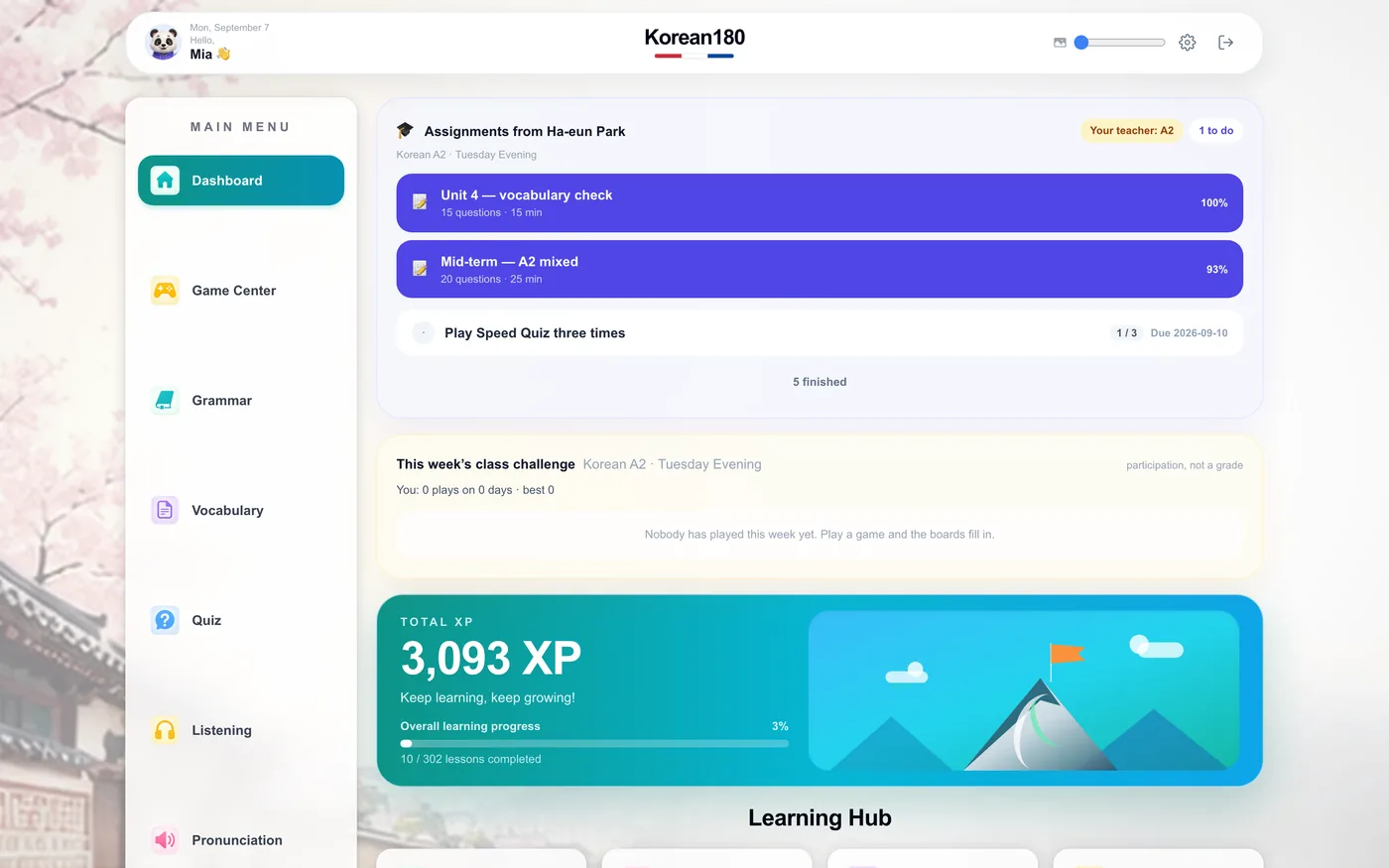
2Open today's card. The dashboard shows one day of the 180. Start at the top card and work down; the rest of the day unlocks as you finish.
3Learn ten words. Open the word set and flip each card. Mark honestly what you did not know — that mark is what schedules the word to come back.
4Finish one grammar topic. Read the explanation, then answer the practice at the end. The topic is not counted until the practice is done.
5Check your streak. It sits in the header. Twenty minutes tomorrow keeps it; missing a day does not lose your place in the plan.
That is a full day. If you have a teacher, accept their invitation link first — your seat is on their plan and you will never be asked for a card.
Chapter 01
Your day
Find today's work in one look and start it in one tap.
234
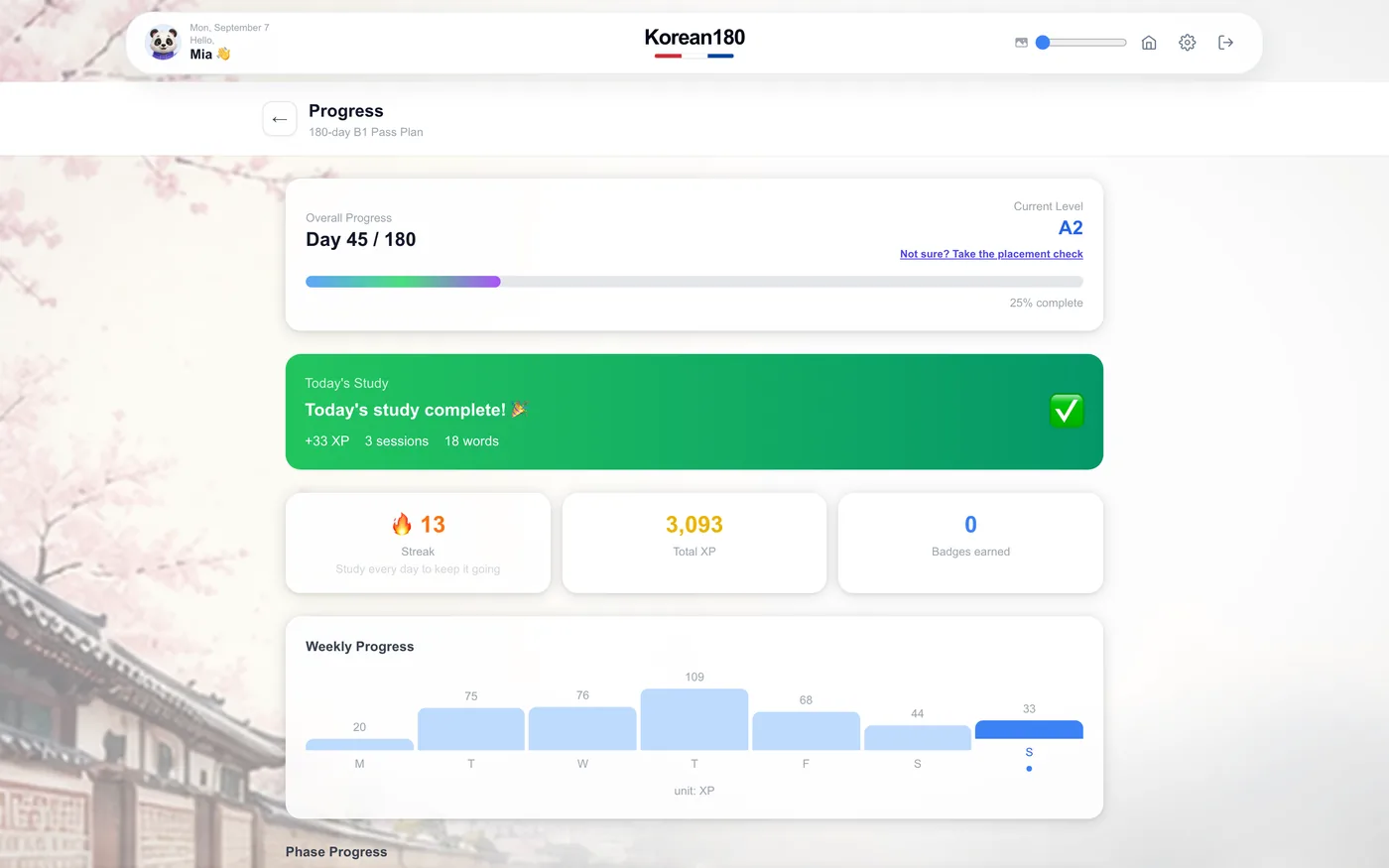
1Read the day counter under your name: it says which day of the 180 you are on.
2Open the top card. It holds the lesson, the word set, and the practice for this day.
3Work down the cards in order. A card turns green when it is done.
4Check the streak flame in the header before you leave.
What you will seeEach finished card shows a green tick and the day bar fills; when all cards are done, the next day is unlocked at midnight.
TipThe "Continue" button always reopens the exact card you left, even after you close the browser.
Common mistakeSkipping to tomorrow's content by changing the date does nothing: days unlock only after today's cards are done.
Chapter 02
Words, and the review that brings them back
Work a word set the way the review schedule needs: hear it, read it, and mark honestly.
1234
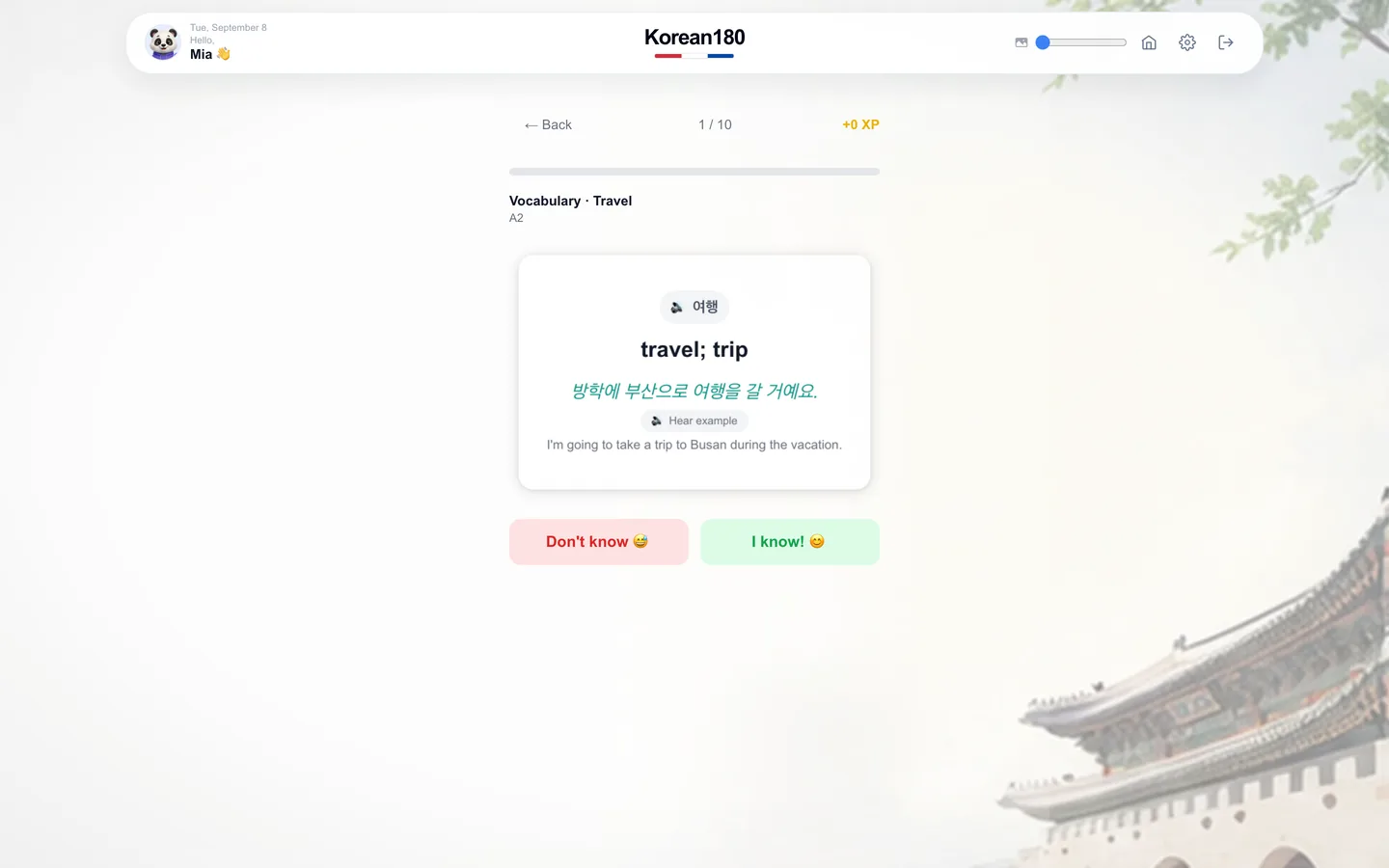
1Tap the speaker to hear the word before you answer.
2Read the example under the meaning; it shows the word in a sentence.
3Choose "Don't know" when you were not sure. That mark is what brings the word back tomorrow.
4Choose "I know!" only when you knew it without hesitating.
What you will seeThe counter at the top moves to the next card, and the set closes with the date each group comes back.
TipThe "Review" tab on the dashboard lists every word due today, across all sets, so you can clear them in one sitting.
Common mistakeMarking "I know!" for a word you guessed pushes it two weeks out, and it will surprise you in the exam instead.
Chapter 03
Grammar, in your own language
Finish one grammar topic, practice included, so it counts toward the day.
1
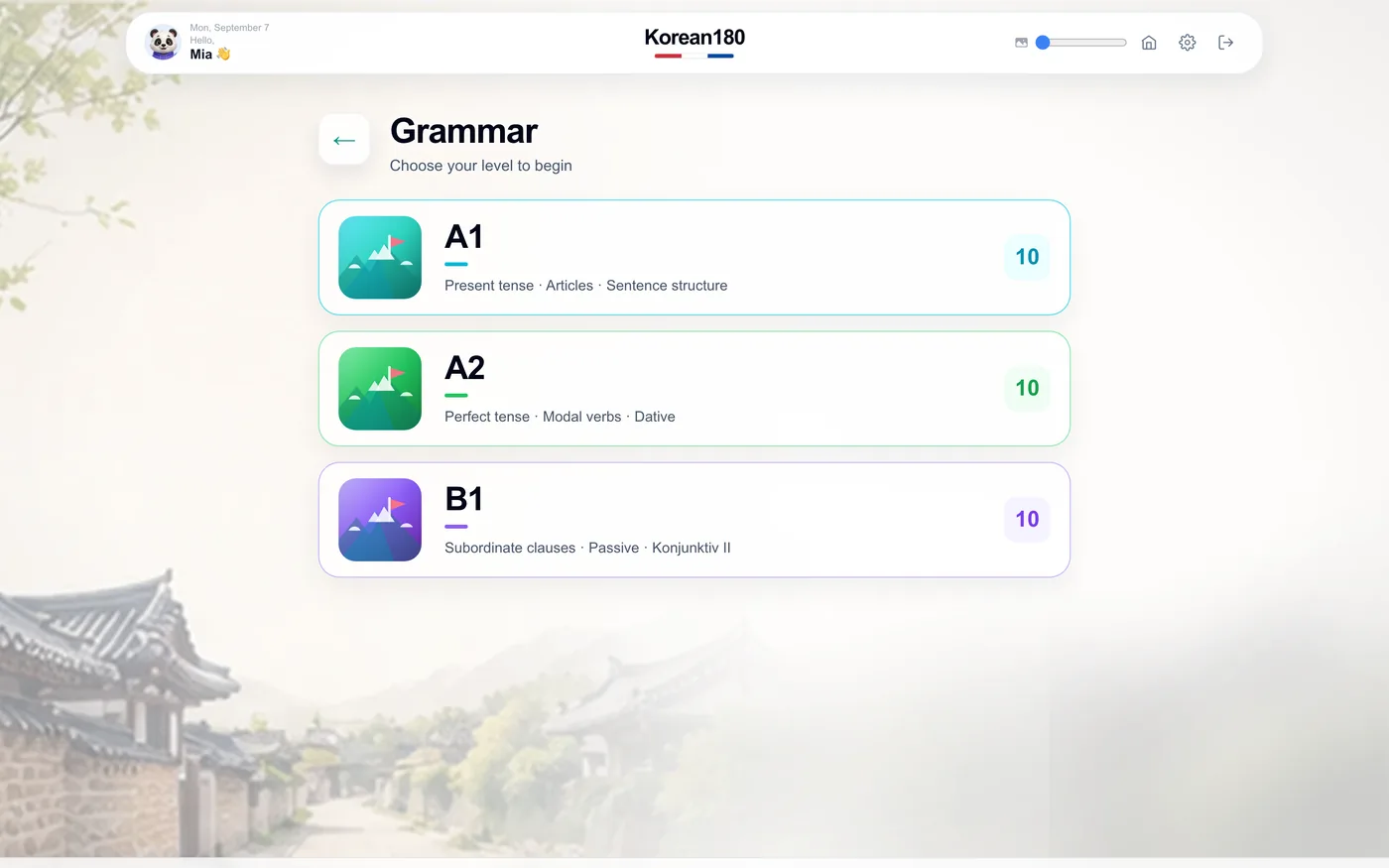
1Open the grammar topic on today's card. The explanation is written in your interface language.
2Read the "Key points" box. It is the summary you will want again before the exam.
3Scroll to "Practice" and answer every question. Wrong answers show the rule they broke.
4Tap "Finish topic". The topic is counted only after the practice is submitted.
What you will seeA score for the practice, and the topic marked done on the day card.
TipEvery example sentence has a speaker icon; hearing the sentence fixes the pattern faster than reading it twice.
Common mistakeReading the explanation and leaving before the practice leaves the topic open, and the day cannot close.
Chapter 04
Listening
Work an exam-style listening track the way the exam will ask it.
1
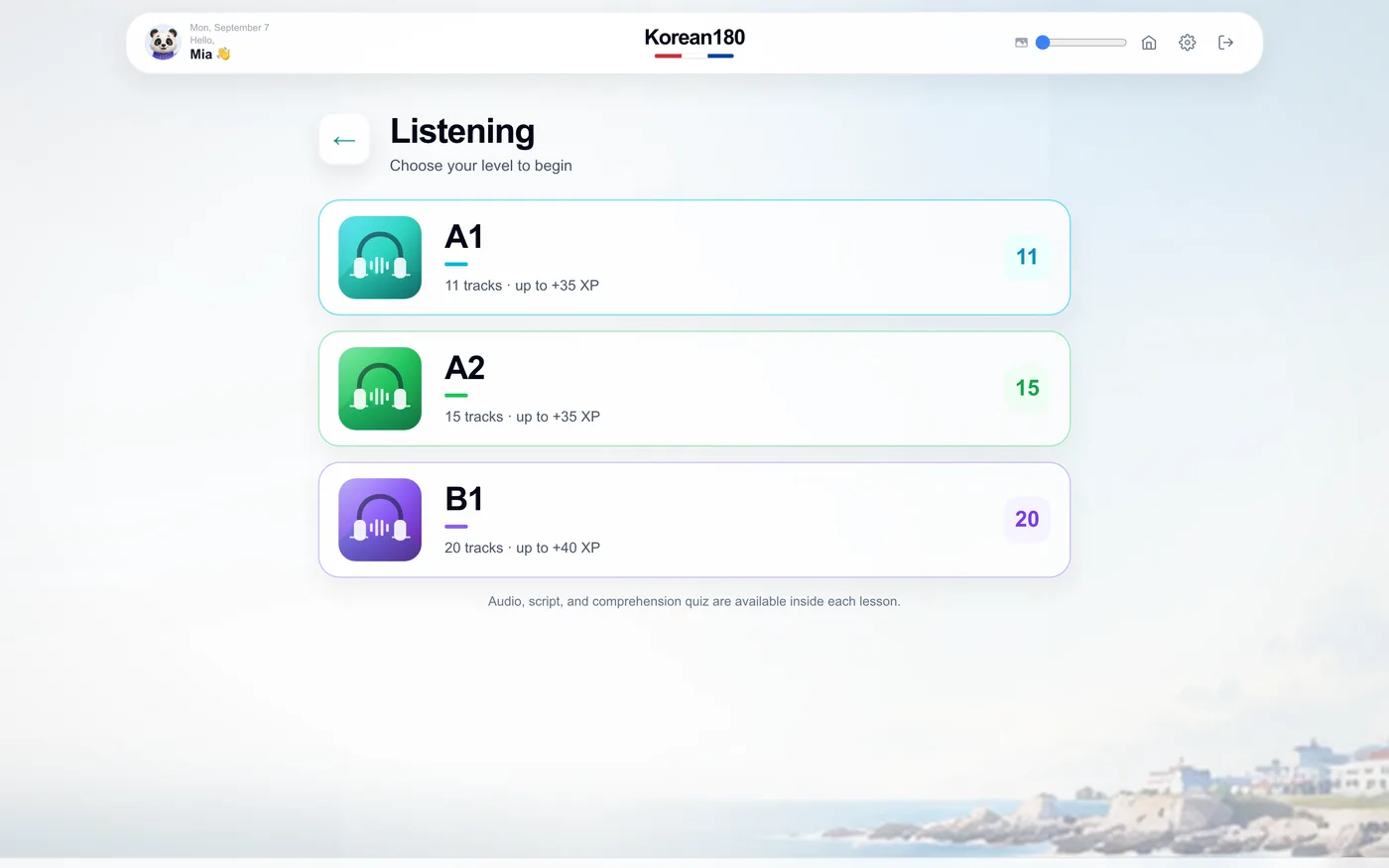
1Open the listening track on today's card and read the question before you press play.
2Play the audio. You may play it twice, as in the exam; the counter shows how many plays are left.
3Answer, then tap "Check".
4Open "Transcript" and find the sentence that carried the answer.
What you will seeThe answer marked right or wrong, the explanation, and the transcript with the key sentence highlighted.
TipThe speed control next to the play button slows the track to 0.75× without changing the voice.
Common mistakeOpening the transcript before the second play turns a listening exercise into a reading one, and the exam score will not follow.
Chapter 05
Pronunciation
Hear the contrast a chapter is about, then prove you can tell the sounds apart.
23
1Open "Pronunciation" and choose a chapter. Chapter one is the sound contrast learners miss most.
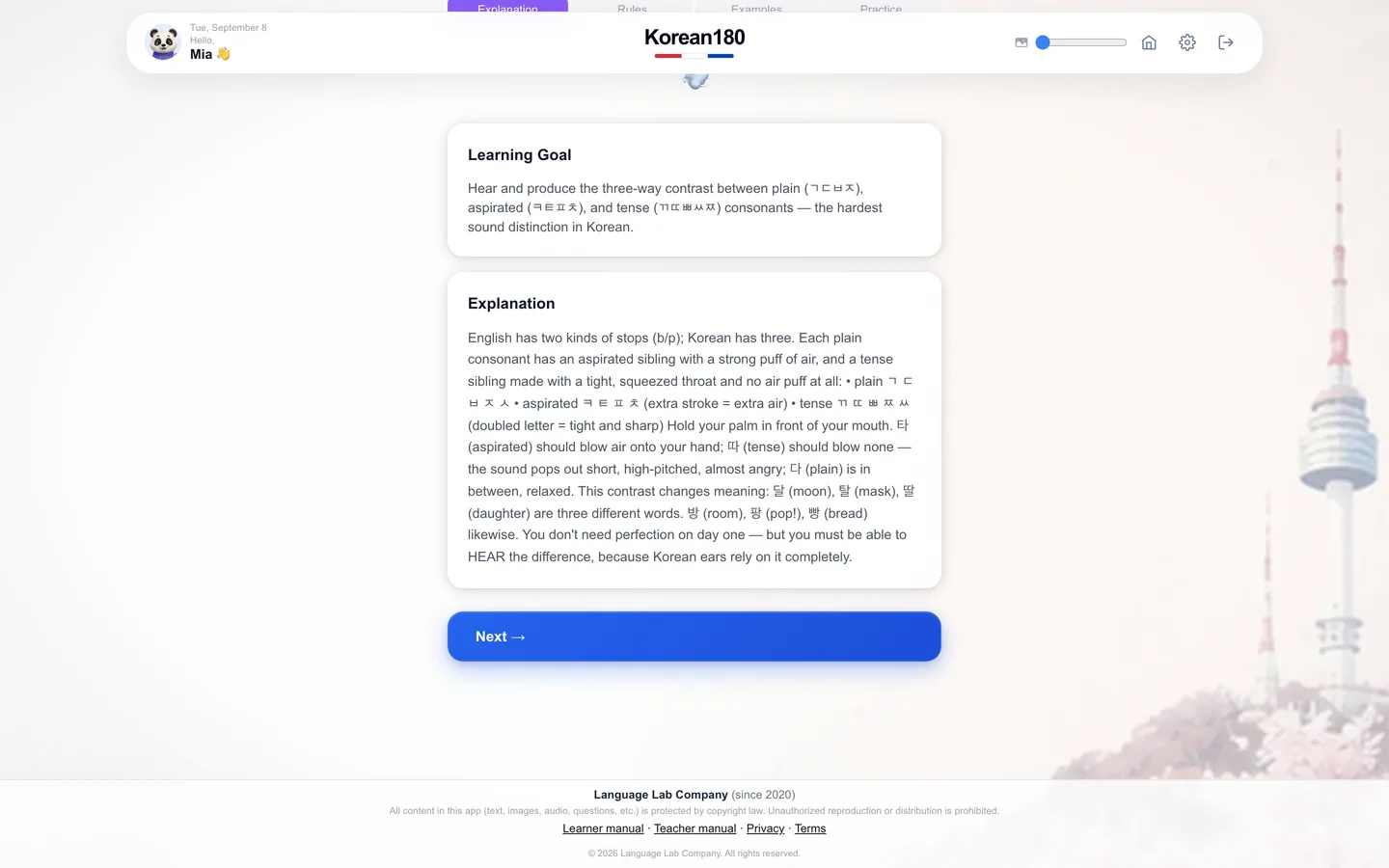
2Read "Learning goal" and "Explanation". Each explains the sound in your language, with the mouth position.
3Tap "Next" to reach the examples. Play each pair and repeat it aloud.
4Answer the practice at the end. It plays a sound and asks which written form it was.
What you will seeA score for the chapter and a tick on the chapter list; the chapter can be reopened any time.
TipUse headphones for the practice. The contrasts are short, and laptop speakers blur them.
Common mistakeReading the explanation without playing the examples leaves you knowing the rule and still hearing one sound.
Chapter 06
Conversation
Play one side of a real situation and choose the reply that fits.
23
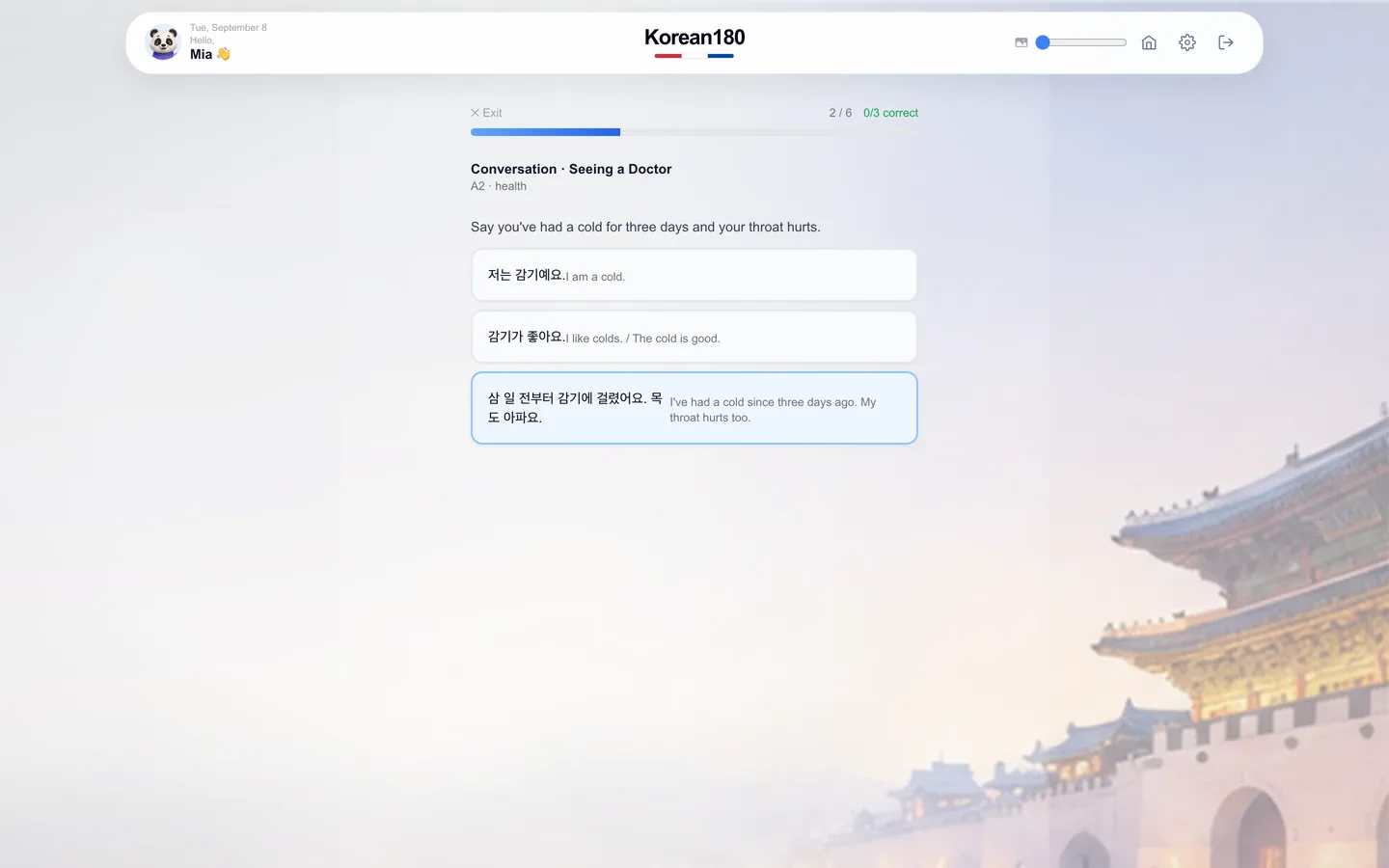
1Open "Conversation", choose your level, then a scenario. Read its brief; it tells you who you are in the dialogue.
2Tap "Start role-play". Listen to the other speaker; tap "Replay" if you need the line again.
3On your turn, read the instruction above the choices and pick the reply that does what it asks.
4Read the feedback on a wrong choice. It explains what your line meant, not only that it was wrong.
What you will seeThe counter at the top tracks turns and correct replies; the scenario ends with a score and its XP.
TipEach reply shows your language underneath. Cover it with your hand on the second run of a scenario.
Common mistakeChoosing the longest reply because it looks complete often picks a polite sentence that answers a different question.
Chapter 07
Games
Turn spare minutes into review, and race a friend when you want to.
14
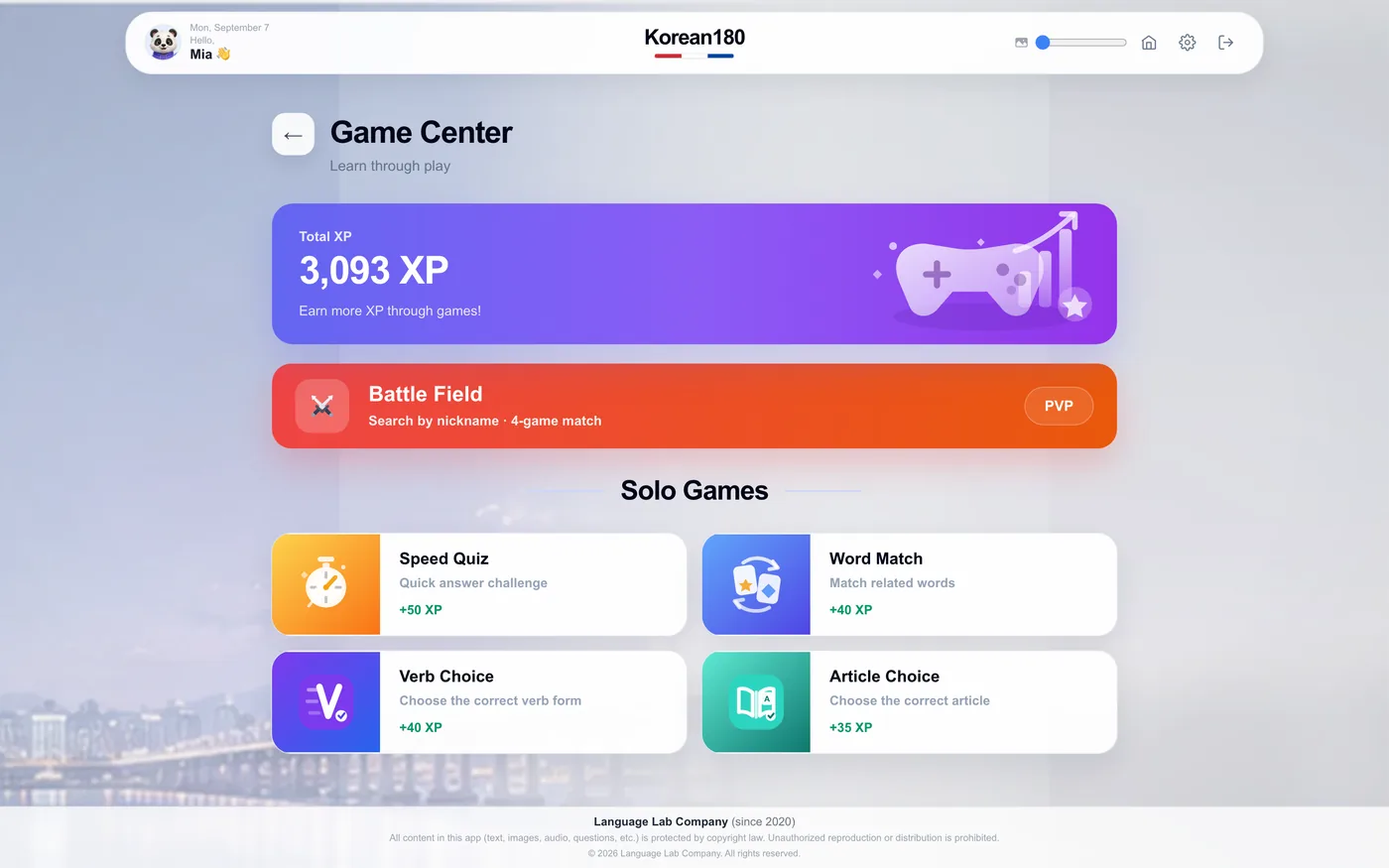
1Open "Games". Four games use your own vocabulary and grammar: speed quiz, spelling, word match, typing battle.
2Pick one and play a round. Rounds are two to three minutes.
3Set a nickname in "Profile" once; it is required to appear in game results.
4Choose "Battle" to play a live round against another learner at your level.
What you will seeA round score, the XP it earned, and your place on the game's weekly board.
TipWord match pulls from words due for review today, so a round doubles as your review.
Common mistakePlaying games instead of the day card earns XP but does not advance the 180-day plan.
Chapter 08
The wrong-answer notebook
Clear the questions you got wrong until you can explain why the right answer is right.
123
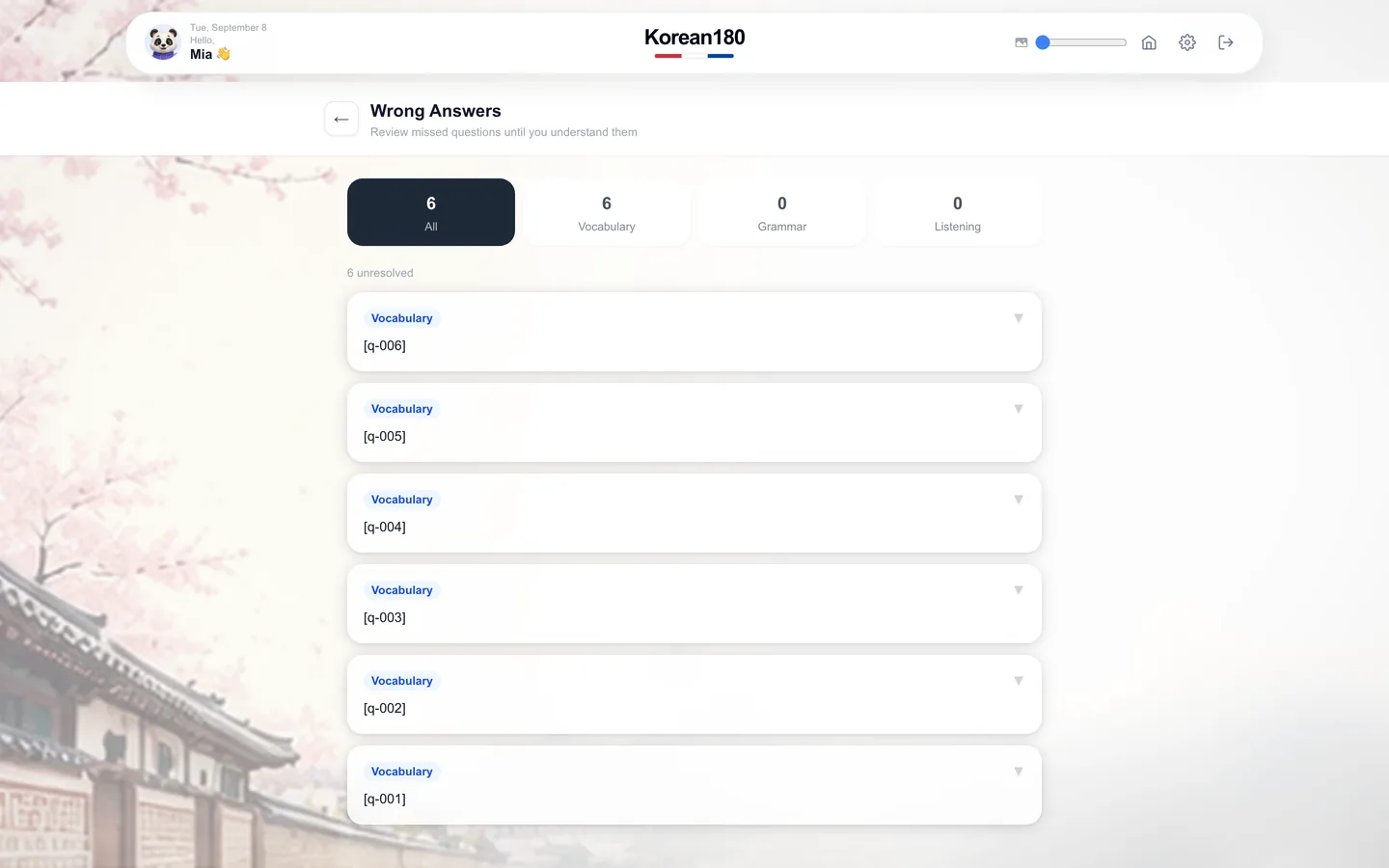
1Open "Review". Every wrong answer from every quiz is collected here, newest first.
2Use the counters at the top to see one type at a time: vocabulary, grammar, listening.
3Open an item. It shows the question, what you chose, the right answer, and the explanation.
4Answer it again. Two correct answers in a row remove it from the notebook.
What you will seeThe "unresolved" count falls as items are cleared; a cleared item stays visible under "Resolved" for a week.
TipDo the notebook before new content on days when it holds more than ten items.
Common mistakeTapping "Resolved" by hand without answering again clears the item and leaves the gap in place.
Chapter 09
Progress
See where you are in the 180 days and which skill is behind.
13
1Open "Progress". The top band shows your day, your level, and the date the plan reaches the exam.
2Read the six skill bars. A bar below the others is where the next hour should go.
3Open "Weekly" to see study minutes per day for the last four weeks.
What you will seeThe day counter, one bar per skill, and the streak calendar with every studied day marked.
TipYour teacher, if you have one, sees this same page for you. What you see is what they see.
Common mistakeChasing XP evens nothing out; XP counts activity, the skill bars count what you got right.
Chapter 10
Your language, your plan, your class
Set the three things on the account page that change how the app behaves.
134
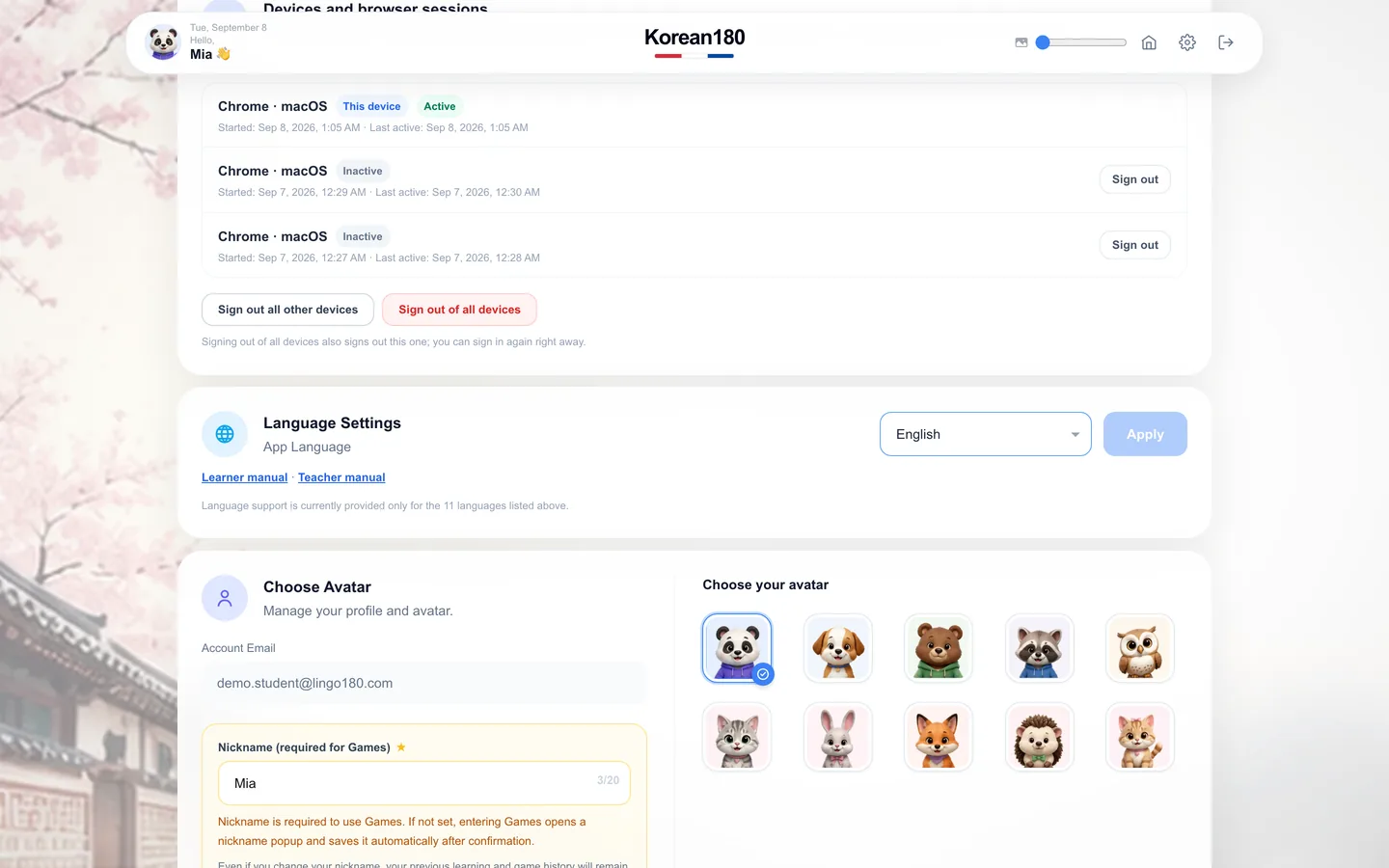
1Open "Profile" from the header. "Language settings" changes the language the app explains in; pick from the list and tap "Apply".
2Read "Plan". It shows your trial or subscription and the date it renews. On a teacher's seat, it shows the class instead.
3Under "Devices", sign out sessions you do not recognize. Two devices at once are allowed.
4Set an avatar and a nickname. The nickname is what other learners see in games.
What you will seeThe interface switches language on the next screen; the plan row shows what you have and when it ends.
TipBoth manuals are linked under "Language settings", in the same language as your interface.
Common mistakeChanging the interface language does not change the language you are learning; that is fixed by the course.